Before you recover
How to download and install PhoneRescue safely
Installing PhoneRescue takes a few minutes. The steps that matter most happen before you click anything: choosing the correct edition and knowing exactly where your installer is coming from.
Step summary
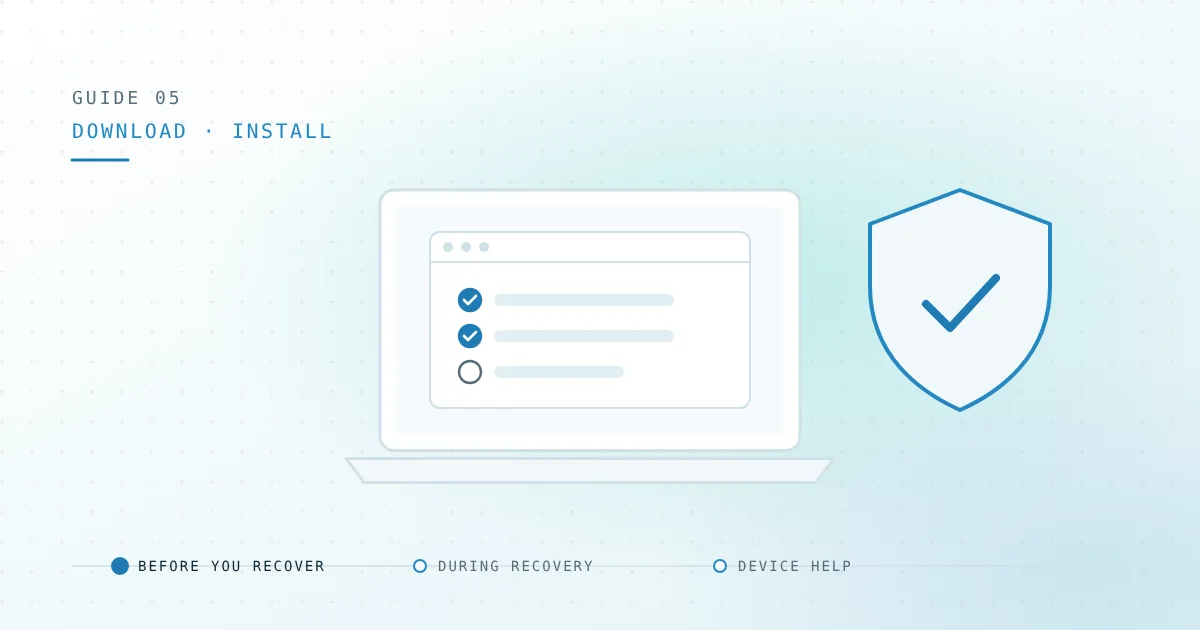
- Decide whether you need PhoneRescue for iOS or for Android.
- Open the download link and confirm the edition and file name.
- Run the installer and read every screen before continuing.
- Launch PhoneRescue and connect your phone.
Step 1: choose the edition
PhoneRescue comes in two separate programs:
- PhoneRescue for iOS — for iPhone, iPad and iPod touch, with device, iTunes backup and iCloud recovery modes plus iOS repair tools.
- PhoneRescue for Android — for Android phones and tablets, connected with USB debugging.
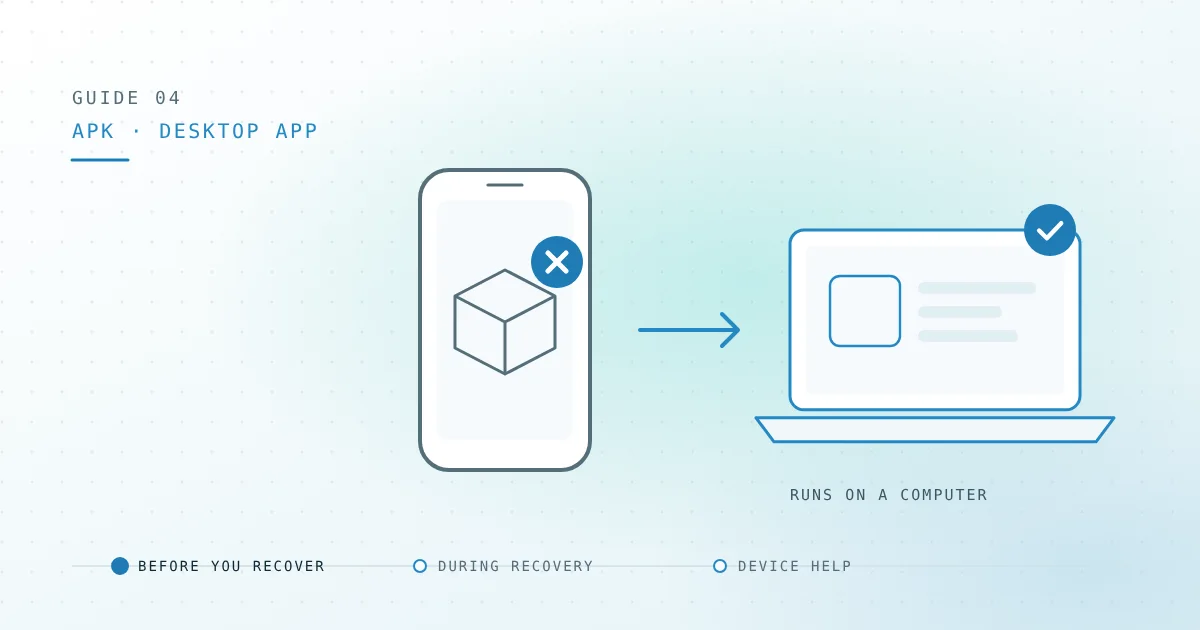
Both run on Windows and macOS. Installing the wrong one is the most common early mistake, so check before you download.
Step 2: know where the download comes from
The download button on this site opens the PhoneRescue listing on FileHippo, a third-party software download site. This site does not host the installer itself. When we prepared this guide, that listing offered the Windows installer for PhoneRescue for iOS.
- FileHippo may deliver the file through its own downloader. Read each screen it shows.
- Check that the file name and description match the edition you need.
- If you need PhoneRescue for Android or a Mac build, confirm you are getting that version — the developer's own website lists every edition.
Step 3: install on Windows
- Open the downloaded installer. Windows may ask for permission to make changes; approve it only if the publisher shown matches what you expect.
- Read each installer screen. Untick any optional offers you did not ask for.
- Keep the default installation folder unless you have a reason to change it.
- For iPhones, Windows needs Apple's device drivers to recognize the phone. If your iPhone is not detected later, installing Apple's iTunes or Apple Devices app usually provides them.
Step 3 (Mac): install on macOS
On a Mac, open the downloaded disk image and drag PhoneRescue into the Applications folder if prompted. The first time you open an app downloaded from the internet, macOS asks you to confirm. If it refuses to open the app, check the security settings and only allow it if you are sure where the file came from.
Step 4: first launch checklist
- Connect the phone with a data-capable USB cable.
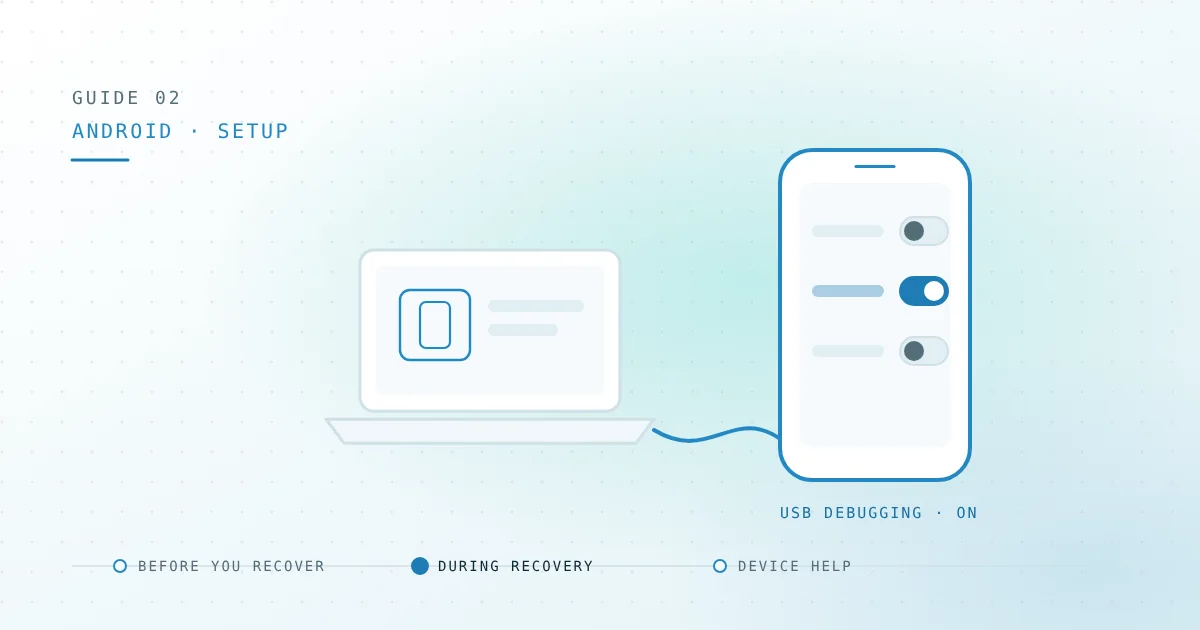
- iPhone: unlock it and tap Trust. Android: enable USB debugging and tap Allow — see the Android setup guide.
- Choose a recovery mode and start with the trial scan — here is what the trial covers.
If you later want to remove PhoneRescue, uninstall it like any other program: through Settings or Control Panel on Windows, or by moving it from Applications to the Trash on a Mac.