During recovery
PhoneRescue not detecting your phone? Work through these fixes
When PhoneRescue does not see your phone, the cause is almost always on the connection side rather than in PhoneRescue itself. Work through these checks in order; most people are scanning again within a few minutes.
Step summary
- Swap to a data-capable cable and a different USB port.
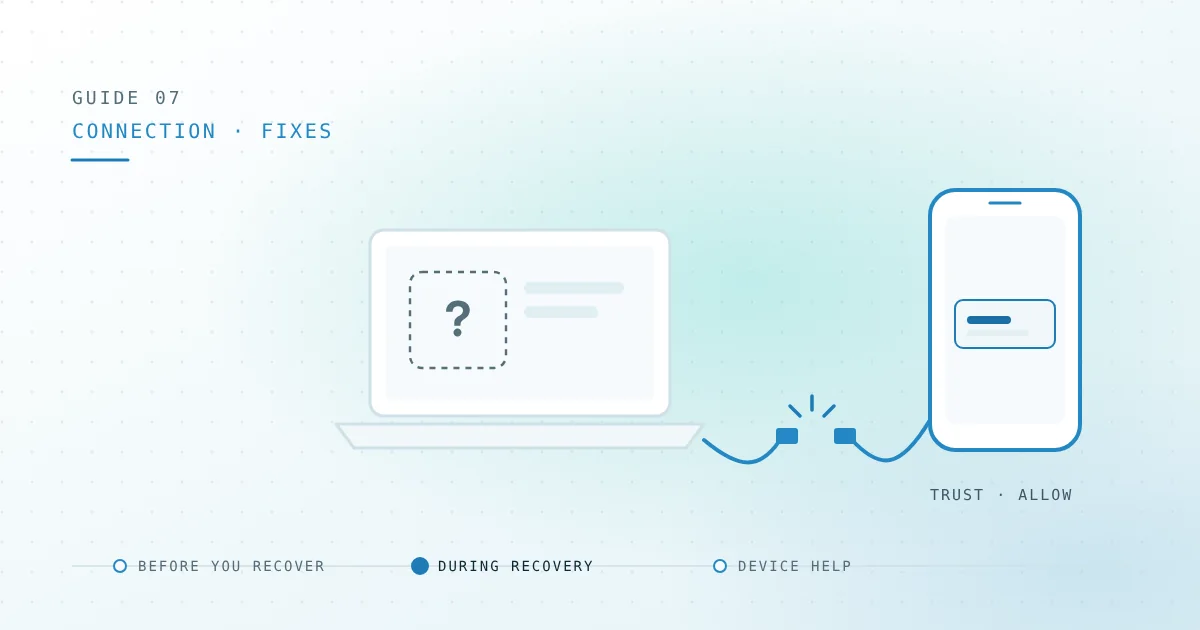
- Unlock the phone and approve the Trust or USB debugging prompt.
- Install the right drivers on Windows.
- Close other phone-management software and restart both devices.
- Contact iMobie support if the phone still is not recognized.
Start with the cable and port
- Use a cable that supports data transfer. Many cheap cables only charge.
- Plug directly into the computer, not into a hub, monitor or keyboard port.
- Try a different USB port, and if you have one, a different cable.
- Check that the phone shows it is charging when connected — if not, the port or cable is the problem.
iPhone and iPad checks
- Unlock the device and keep it on the home screen while connecting.
- When asked “Trust This Computer?”, tap Trust and enter your passcode.
- On Windows, the computer needs Apple's device drivers. Installing or updating iTunes or Apple's Apple Devices app usually provides them.
- If you previously tapped “Don't Trust”, resetting Location & Privacy in the iPhone's settings brings the prompt back.
Android checks
- Make sure USB debugging is on — the steps are in the Android setup guide.
- Unlock the phone and look for the “Allow USB debugging?” prompt. Tap Allow.
- Switch the USB mode from Charging only to File transfer in the notification shade.
- On Windows, accept driver installation if PhoneRescue or Windows offers it.
- If the prompt never appears, turn USB debugging off and on again, or use Revoke USB debugging authorizations in Developer options and reconnect.
Computer-side checks
- Close other phone tools — sync managers, other recovery programs, or manufacturer suites — that may hold the connection.
- Restart the computer and the phone, then connect again before opening other programs.
- Make sure you are running the right edition: PhoneRescue for iOS will not detect an Android phone, and vice versa.
- Update PhoneRescue if the program offers an update, especially after a major iOS or Android update.
Still not detected?
If none of the above works, note your phone model, operating system version and computer system, then contact iMobie's support with those details. In the meantime, if you use an iPhone, you may be able to work from an existing backup instead — the iTunes backup and iCloud modes do not need the phone to be connected.