Before you recover
Improve your chances of recovering deleted phone data
What you do right after losing data often matters more than the tool you use afterwards. These steps apply whether you plan to use PhoneRescue for iOS, PhoneRescue for Android or nothing at all.
Step summary
- Stop using the phone and avoid installing or updating anything.
- Check built-in trash folders and your cloud services.
- Find out which backups exist and when they were made.
- Scan the best source with PhoneRescue and recover to a computer.
- Set up reliable backups for next time.
Why deleted data is not gone immediately
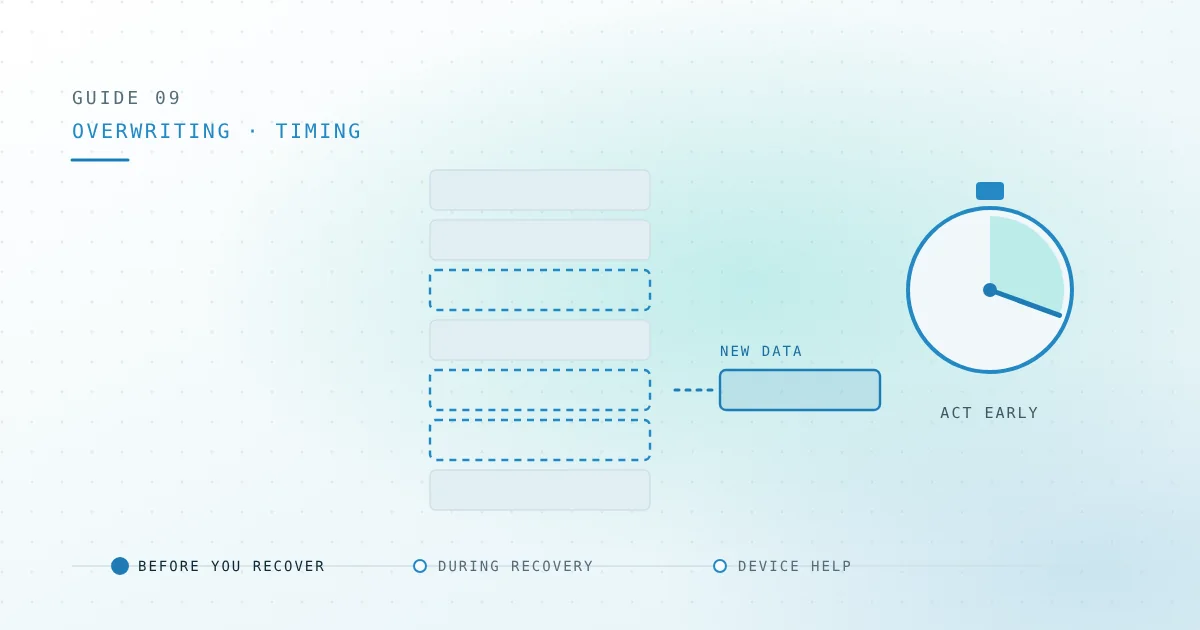
When you delete something, the phone usually marks the space it used as free rather than wiping it straight away. Until new data is written there, traces of the old content may remain. Every photo you take, message you receive or app you update is a chance for that space to be reused.
Modern iPhones and Android phones also encrypt their storage, which can make deleted data unreadable quickly. That is why recovery is never guaranteed — and why backups matter so much.
The first-hour checklist
- Stop taking photos, recording video or downloading files.
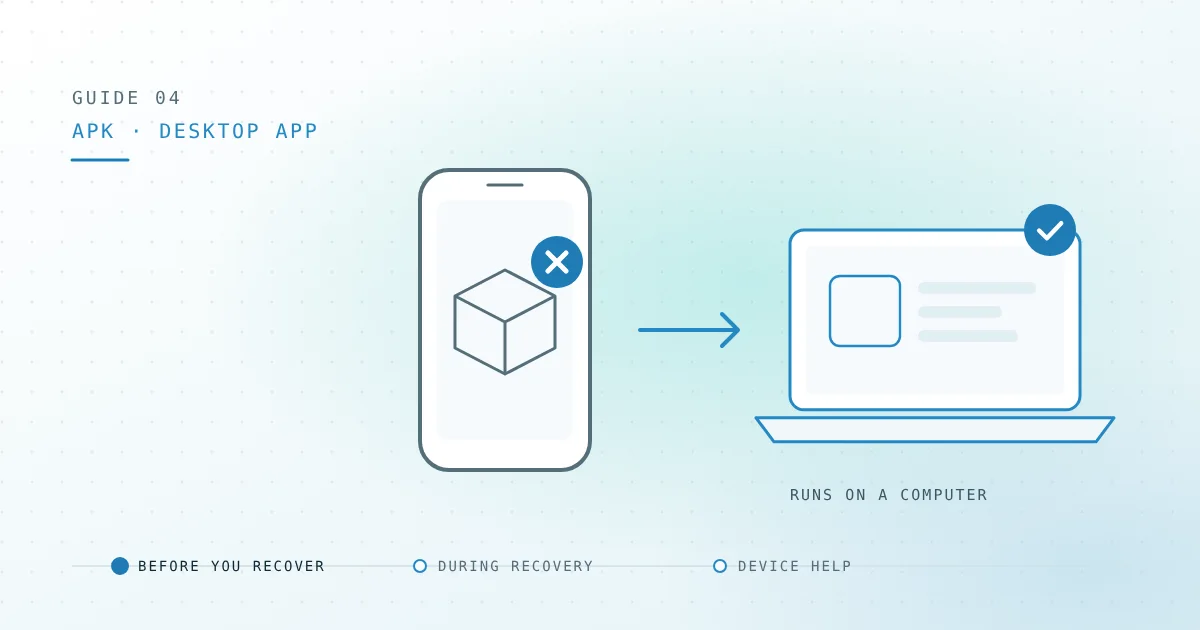
- Do not install new apps, including recovery apps — see why PhoneRescue runs on a computer.
- Postpone system and app updates.
- Consider airplane mode to stop incoming messages and background syncing — unless you are about to rely on a cloud service that needs it.
- Never factory reset the phone in the hope of getting data back.
Check the built-in safety nets
Many apps keep deleted items for a while. On iPhone, the Photos app has a Recently Deleted album, and Notes has its own. On Android, many gallery and file manager apps — and Google Photos — keep a trash or bin folder. Messaging apps may have chat backups in the cloud. These are faster and safer than any scan. Our guide to recovering deleted iPhone photos walks through the iOS options.
Find out which backups exist
| Where to look | What to check |
|---|---|
| iCloud (iPhone, iPad) | Whether a device backup exists and its date |
| Computer (iPhone, iPad) | Local backups made with iTunes or Finder, and whether they are encrypted |
| Google account (Android) | Device backup, Google Photos and contact sync |
| Manufacturer cloud (Android) | Some brands offer their own backup service |
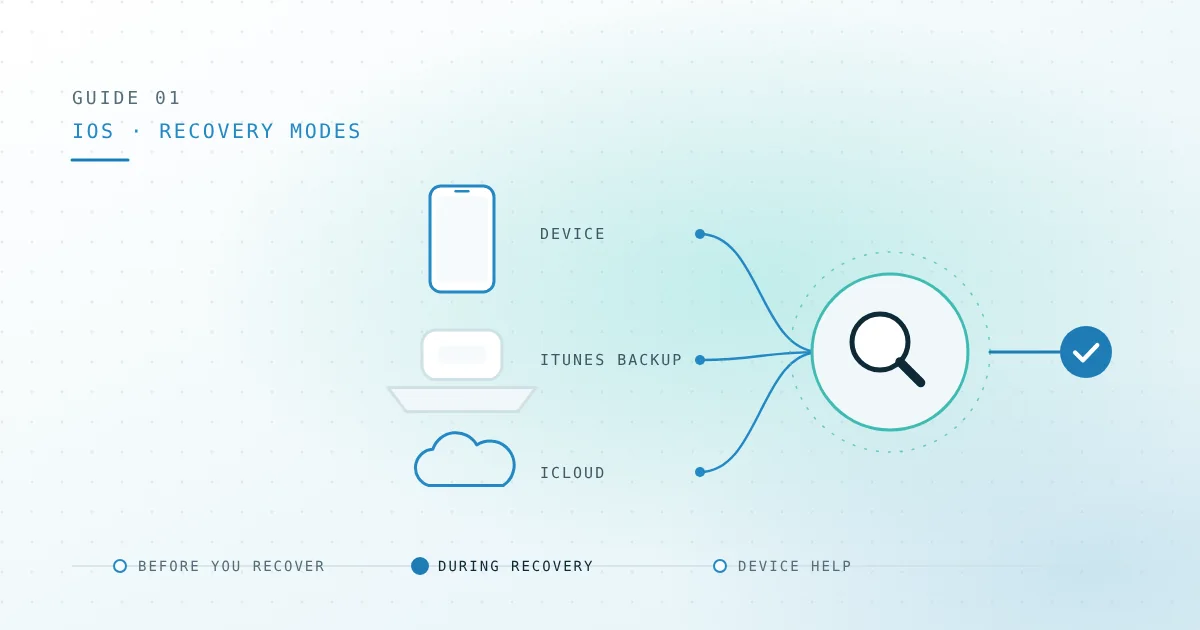
A backup from before the loss is usually your best source. For iPhones, the PhoneRescue iOS recovery modes let you open these backups selectively.
Scan the right way
- Install PhoneRescue on a computer, not the phone — the installation guide covers this.
- Pick the source most likely to have the data: backup first if it predates the loss, device otherwise.
- Scan only the categories you need, preview, and recover to the computer before copying anything back.
Make next time easier
Turn on automatic cloud backups, make an occasional computer backup, and check now and then that both actually complete. It takes minutes, and it turns most data-loss emergencies into a simple restore.