You deleted photos and noticed too late
Recently Deleted is empty and no backup was made after the pictures were taken. A direct device scan is the first thing to try — the sooner, the better.
Route → device scan → Photos
PhoneRescue · iOS & Android data recovery
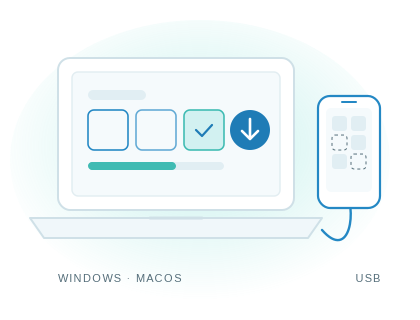
PhoneRescue by iMobie is desktop software for Windows and macOS that scans an iPhone, iPad or Android device or an iPhone backup so you can preview deleted items and recover only the ones you need.
What is PhoneRescue
PhoneRescue is data recovery software from iMobie Inc. You install it on a computer, connect your phone or point it at a backup, and it looks for content that was deleted or became unreachable. Instead of restoring everything blindly, you see what was found and choose what comes back.
Data disappears in ordinary ways, and the built-in options do not always help.
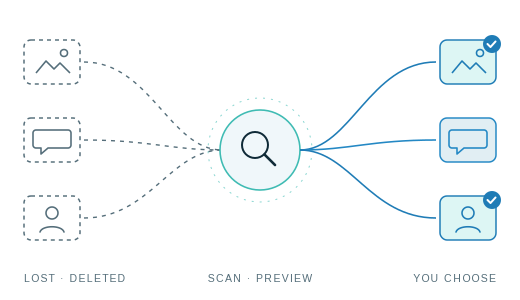
PhoneRescue turns those situations into a visible, selective process.
Developer iMobie Inc. Editions PhoneRescue for iOS · PhoneRescue for Android
Features
Everything in PhoneRescue connects to the same idea: find the data, let you decide, then put it somewhere safe. Hover a feature to see where it sits on the map.
F7–F9 are separate device tools, not recovery steps. Some features are edition-specific.
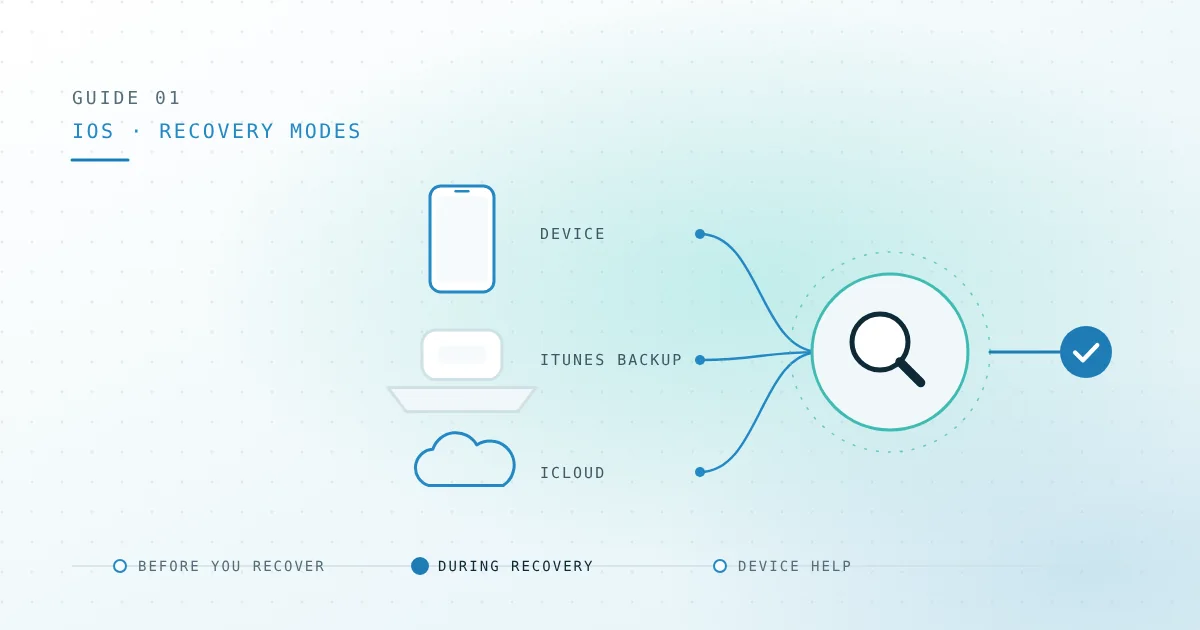
Connect an iPhone, iPad or Android device by USB and PhoneRescue analyzes it for recoverable items — the route to try when there is no suitable backup.
The iOS edition opens local backups on your computer and extracts individual items without restoring the whole backup. iMobie says this includes encrypted and damaged backups; encrypted ones still need their password.
Sign in within the iOS edition to look inside an iCloud backup when the phone is lost, broken or already reset.
Results are grouped by category, so you can open messages, photos and contacts and confirm what was actually found.
Tick individual items instead of restoring everything, which keeps the output focused and avoids replacing newer data.
Save recovered items to the computer, or send supported data types straight back to the device.
Tools aimed at iPhones and iPads stuck on a startup screen, in a restart loop or after a failed update.
Added in PhoneRescue 4: retrieves a forgotten Screen Time passcode from an iOS device you own.
The Android edition includes an option iMobie describes for removing a PIN, pattern or fingerprint lock. Use it only on devices you own.
How it works
The process is the same for iPhone and Android. Only the connection step changes — a Trust prompt on iOS, USB debugging on Android.
Install PhoneRescue for iOS or PhoneRescue for Android on a Windows PC or Mac. They are separate programs.
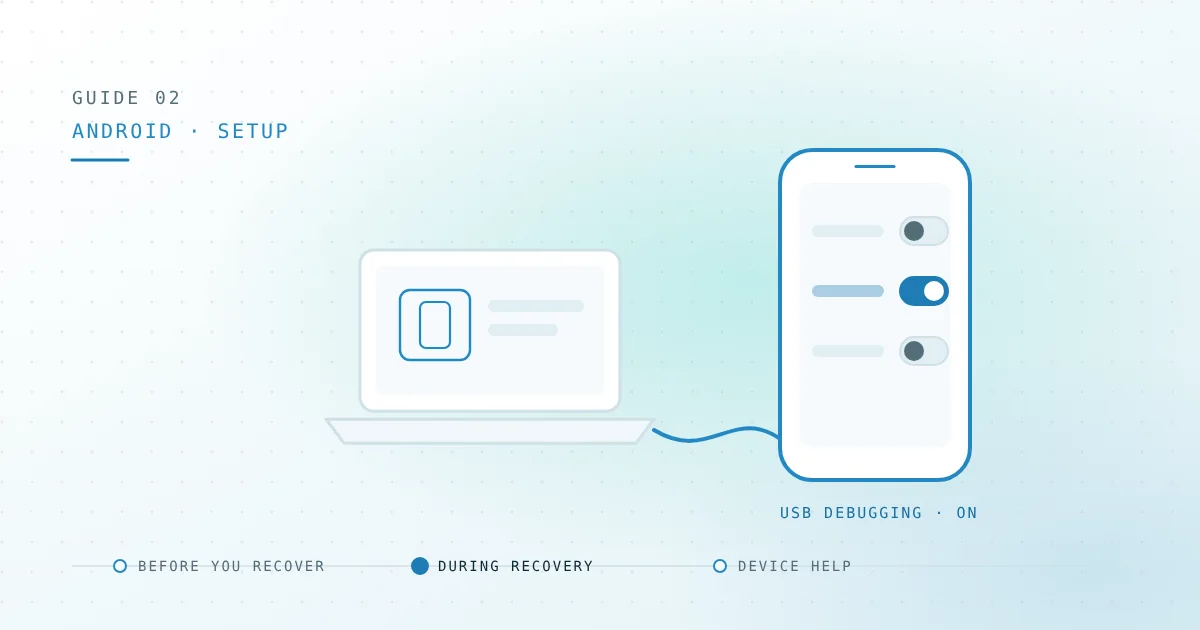
Use a data USB cable. Tap Trust on an iPhone, or allow USB debugging on Android. iOS users can pick an iTunes or iCloud backup instead.
Choose the data types you need and let PhoneRescue analyze the source. Browse the results by category to see what was found.
Tick the items you want and save them to the computer or, where supported, back to the device. Recovery requires a license.
Use cases
Each scenario points to the PhoneRescue mode or tool that makes the most sense to try first.
Recently Deleted is empty and no backup was made after the pictures were taken. A direct device scan is the first thing to try — the sooner, the better.
Route → device scan → Photos
Extract the items you need without restoring the whole backup to a new phone.
Route → iTunes backup
Browse the backup and download only selected items.
Route → iCloud backup
After an accidental delete or an app glitch, PhoneRescue for Android can scan the phone over USB debugging and show what is still recoverable.
Route → Android edition → device scan
Try a force restart first, then the iOS repair tools — and back up before any option that warns about erasing data.
Route → iOS repair tools
PhoneRescue 4 added a tool that retrieves the passcode from an iOS device you own.
Route → Screen Time passcode tool
Installation & setup
Most failed scans trace back to setup. These five steps cover both editions.
PhoneRescue for iOS is for iPhone, iPad and iPod touch. PhoneRescue for Android is for Android phones and tablets. They are installed and licensed separately.
The download button opens a third-party listing. Check that the edition and file name match what you need before running it.
Download hosts can wrap files in their own downloader. Decline optional offers you did not ask for and keep the default install folder unless you have a reason not to.
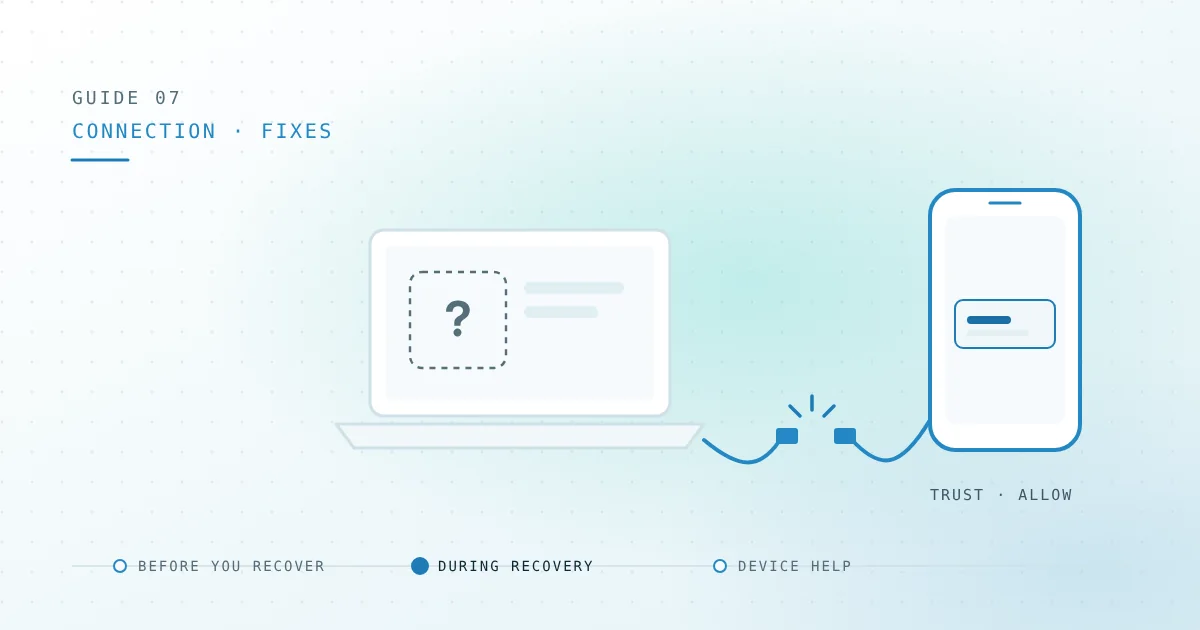
Unlock the phone and use a data-capable USB cable. On Windows, accept driver installation when asked; iPhones also need Apple's device drivers, which iTunes or the Apple Devices app provides.
iOS: tap “Trust This Computer” Android: allow USB debuggingChoose the device, or on iOS an iTunes or iCloud backup, select the data types you need, and start the scan.
Compatibility
What each edition works with, based on iMobie's own descriptions of the products.
| EditionPhoneRescue for iOS | EditionPhoneRescue for Android | |
|---|---|---|
| Computer | Windows PC or Mac | Windows PC or Mac |
| Devices | iPhone, iPad, iPod touch | Android phones and tablets from many manufacturers, including Samsung, Google, Huawei and LG |
| Recovery sources | The device, an iTunes backup on the computer, an iCloud backup | The device |
| Connection | USB cable, “Trust This Computer” on the device | USB cable with USB debugging enabled |
| Recover to | Computer, or back to the device for supported data | Computer, or back to the device for supported data |
| Extra tools | iOS system repair, Screen Time passcode recovery | Lock screen removal |
| Phone app / APK | No — runs on the computer | No — runs on the computer |
Exact supported versions of Windows, macOS, iOS and Android change between releases. Check the developer's current system requirements before buying a license, especially right after a major phone OS update.
Troubleshooting
A quick diagnostic for the problems people run into most. Work top to bottom within each item.
Download
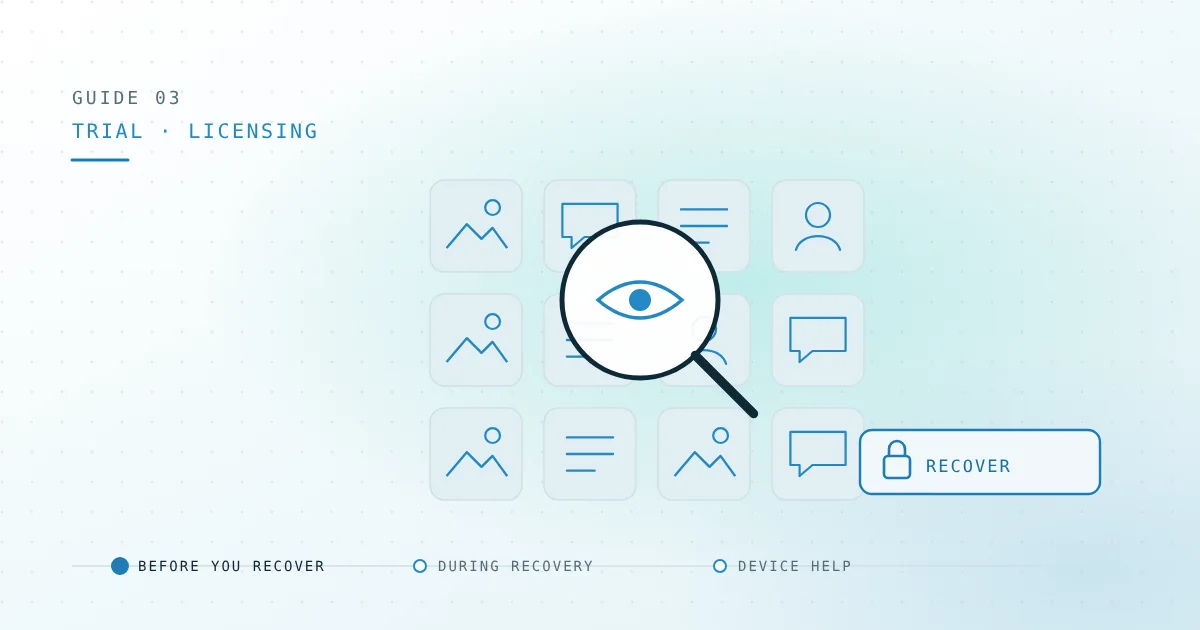
Install PhoneRescue on your computer, connect your phone or open a backup, and use the free trial to scan and preview what can be recovered before you decide on a license.
Guides
Short, specific walkthroughs — from choosing a recovery mode to fixing a phone that will not connect.
Release information
We only list details that are publicly stated by the developer or shown on the download listing. Version numbers change; always check the listing before installing.
Pros and cons
PhoneRescue is a capable tool with clear limits. Both sides are worth knowing before you rely on it.
FAQ
Twenty answers in two groups: getting the software, and getting your data back.
Editions, pricing model, downloads and safety — what to know before installing.
PhoneRescue is data recovery software made by iMobie Inc. It runs on a Windows PC or a Mac and works with a connected iPhone, iPad or Android device to find deleted or unreachable data such as photos, messages and contacts, which you can preview and recover selectively.
PhoneRescue is developed by iMobie Inc. This website is an independent guide. It is not run by iMobie, and it does not sell licenses or provide official support.
They are separate programs. PhoneRescue for iOS works with iPhone, iPad and iPod touch and can recover from the device, an iTunes backup or an iCloud backup, plus iOS repair tools. PhoneRescue for Android works with Android phones and tablets over USB debugging and includes an Android lock screen removal option.
You can download and try it for free. The trial lets you scan and preview what can be found; recovering the items requires a paid license. Our guide on whether PhoneRescue is free explains the details.
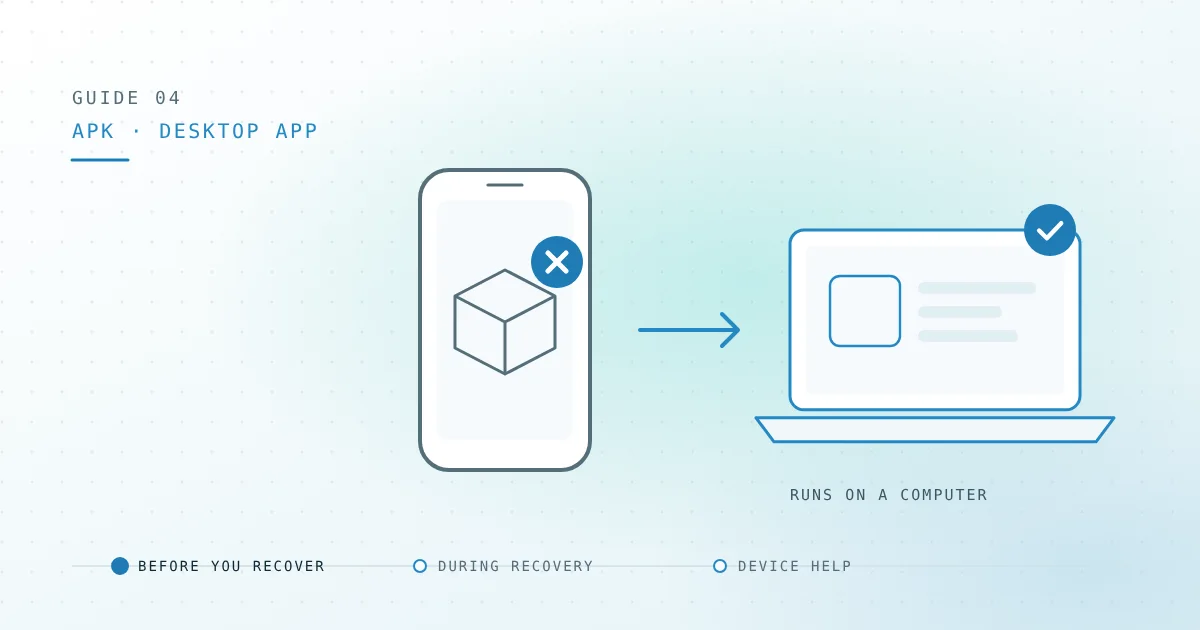
PhoneRescue is distributed as a desktop program for Windows and macOS, not as a phone app. Installing apps on a phone after data loss can overwrite deleted data, so treat any APK presented as PhoneRescue with caution.
Yes. Both editions are available for Windows and macOS. Check the developer's current system requirements for the exact versions supported by the build you download.
The main download button opens the PhoneRescue listing on FileHippo, a third-party download site. When this page was prepared, that listing offered the Windows installer for PhoneRescue for iOS. Make sure the edition matches your phone before installing.
Use a reputable source, read every installer screen, decline optional offers you did not ask for, and scan the file with your security software if you are unsure. Avoid cracked or “free full version” downloads entirely.
PhoneRescue for iOS is designed for iPhone, iPad and iPod touch. Support for specific iOS versions depends on the PhoneRescue release, so check the developer's compatibility notes, especially after a major iOS update.
The iOS and Android editions are sold as separate products with their own plans. Check what a plan covers before buying, including how many devices and computers it allows.
Sources, expectations and fixes for the problems people meet most often.
It can scan the device directly, which is the option to try when no backup contains the missing item. Results depend on whether the data has been overwritten, and on modern encrypted phones some deleted data cannot be read back.
Yes, PhoneRescue for iOS has separate modes for local iTunes backups on your computer and for iCloud backups. You can browse a backup and extract individual items instead of restoring the whole backup to the phone.
Scanning is an analysis step and the developer describes it as not overwriting existing data. Restoring items back to the device does write to it, so recovering to your computer first is the more cautious choice.
Common categories include photos, videos, messages, contacts, call history, notes and data from some messaging apps. iMobie cites support for up to 31 data types across its editions; the exact list depends on the edition and source.
No recovery tool can guarantee results. If deleted data has been overwritten or cannot be decrypted, it will not be recoverable. The trial preview shows what can actually be found before you pay.
Usually it is the cable, the USB port, a missed Trust or USB debugging prompt, or missing drivers on Windows. Our troubleshooting section and the dedicated guide walk through each check.
Not to try a normal scan. Some deeper Android scans may ask for root access. Rooting has security and warranty implications, so read what is required and decide carefully.
Yes. Results are grouped by category so you can open items, check them and select only the ones you want.
Stop using the phone as much as possible, avoid installing apps or updates, check built-in trash folders and cloud services, and find out which backups exist before you scan.
PhoneRescue for iOS includes repair tools for software problems such as boot loops or failed updates. Try a force restart first, and if a repair option warns that it will erase data, make sure you have a backup.